Hiển thị các bài đăng có nhãn dotnet C#. Hiển thị tất cả bài đăng

Dotnet Tips: Những Frameworks mà một cao thủ .NET web developers nên biết

Một số frameworks mà lập trình viên .Net nên biết:


BACKEND DEVELOPER
1. ASP.NET MVC, NETCORE MVC
Website: https://dotnet.microsoft.com/apps/aspnet/mvc
Là một framework tuyệt với để xây dựng web theo mô hình MVC (Model - View - Controller),
hiện tại những  dự án viết trên nền tảng netcore có thể được hỗ trợ triển khai trên Window, Linux, Mac ...

2. ASP.NET WEB API, NETCORE WEB API
Website: https://dotnet.microsoft.com/apps/aspnet/apis
Hỗ trợ viết API theo nhiều định dạng Soap (xml), rest api (Json), 
hiện tại những  dự án viết trên nền tảng netcore có thể được hỗ trợ triển khai trên Window, Linux, Mac ...

SIGNAL
Website: https://dotnet.microsoft.com/apps/aspnet/signalr
Là công cụ hỗ trợ những ứng dụng thời gian thực như chat, notification, hiện đã hỗ trợ triển khai trên các môi trường Window, Mac, Linux... 

Common Logging
Website: http://netcommon.sourceforge.net
Là một thư việc hỗ trợ ghi log cho ngôn ngữ lập trình .Net, đơn giản và dễ sử dụng.

Logging in Net
Website: https://docs.microsoft.com/en-us/dotnet/core/extensions/logging
.NET hỗ trợ API ghi nhật ký hoạt động với nhiều nhà cung cấp dịch vụ ghi nhật ký bên thứ ba và bên thứ ba được tích hợp sẵn

Dependency Injection
Website: https://docs.microsoft.com/en-us/dotnet/core/extensions/dependency-injection

WINDSOR CONTAINER
Website: http://www.castleproject.org
Source Code: https://github.com/castleproject/Windsor
Là một thư viện hỗ trợ Dependency Injection

AUTOMAPPER
Website: http://automapper.org/
Cũng là một thư viện hỗ trợ ánh xạ dữ liệu giữa .Net và cơ sở dữ liệu.

DAPPER
Website: https://dapper-tutorial.net/dapper
Cũng là một thư viện hỗ trợ ánh xạ dữ liệu giữa .Net và cơ sở dữ liệu.

SERVICE STACK
Website: https://servicestack.net
Là một thư viện hỗ trợ xây dựng API khá mạnh

QUARTZ.NET
Website: https://www.quartz-scheduler.net/
Công cụ hỗ trợ xây dựng những hệ thống quản lý lịch tự động. Dùng thư viện này khá là ổn áp.

CACHE COW
Website: https://github.com/aliostad/CacheCow
Cung cấp một giải pháp cache tuyệt vời, hỗ trợ cả netcore và .net framework

REDIS
Website: http://redis.io
Source Code: https://github.com/redis/redis
Cung cấp một giải pháp cache tuyệt vời cho các hệt thống viết bằng bất kỳ ngôn ngữ lập trình nào. Hiện tại trên cloud AWS, Azure ... đều cung cấp các giải pháp về Redis Cache.

XUNIT
Source Code: https://github.com/xunit/xunit
Là thư viện phổ biến nhất hỗ trợ cho testing các framework for .NET applications

FRONTEND DEVELOPER (UI/UX)
SASS
Website: https://sass-lang.com
Source Code: https://github.com/sass/sass
Là một thư viện CSS chuyên nghiệp, bạn nên sử dụng một lần sẽ thấy hiệu quả

BOOTSTRAP
Website: https://getbootstrap.com
Thư viện mà nguồn mở cho css tuyệt vời. Bootraps hiện vẫn phát triển liên tục và hỗ trợ các Framework như ReactJS, AngularJS, JQuery, ....

AngularJS
Website: https://angularjs.org
Thư viện js tuyệt vời của google phát triển, là một trong những thư viện sử dụng nhiều nhất cho giới làm Frontend

ReactJS
Website: https://reactjs.org
Thư viện js quá đỉnh của Facebook phát triển, là một trong những thư viện sử dụng nhiều nhất cho giới làm Frontend

Dotnet Tips: Hướng dẫn cài đặt windows service


Cài đặt window service thủ công

  1. Mở Windows Start menu, chọn Visual Studio 2010, Visual Studio Tools, Visual Studio Command Prompt (2010).
    Một cửa sổ console sẽ hiện ra
  2. Truy cập vào thư mục chứa window service
  3. Chạy file InstallUtil.exe từ cửa sổ cmd với các tham số. Nhấn Enter để chạy câu lệnh.
Code: installutil yourproject.exe


Gỡ bỏ window service

  1. Mở Windows Start menu, chọn Visual Studio 2010, Visual Studio Tools, Visual Studio Command Prompt (2010).
  2. Một cửa sổ console sẽ hiện ra.
  3. Chạy file InstallUtil.exe từ cửa sổ cmd với các tham số. Nhấn Enter để chạy câu lệnh:
Code: installutil /u yourproject.exe

Dotnet tips: Cách tạo một ứng dụng Service window với C# .Net - Creating a Windows Service Using C#

Windows Services là tính năng quan trọng nhất cho các ứng dụng lâu dài để chạy các dịch vụ tự động ngay sau khi khởi động hệ thống.Chúng tôi có thể tự điều khiển các Dịch vụ này bằng cách bắt đầu và dừng tại một thời điểm cụ thể.

Bạn có thể xem những window service chạy bằng cách Run > nhập services.msc và Enter.

Các bước để tạo windows Service với C#:

Bước 1:
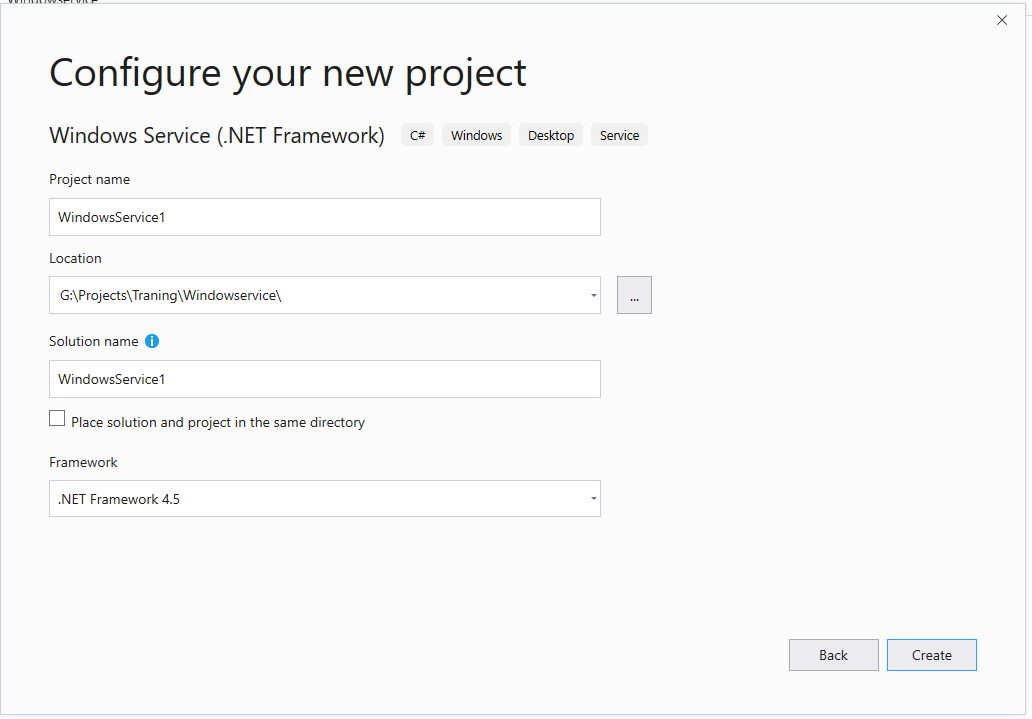
Mở Visual studio, tạo dự án Windows Service


Bước 2: 

Mở file  Service1.cs file. Đổi hết thông tin Service1 trong project thành DemoService. Add this code to that file
using System;
using System.Collections.Generic;
using System.ComponentModel;
using System.Data;
using System.Diagnostics;
using System.IO;
using System.Linq;
using System.ServiceProcess;
using System.Text;
using System.Threading;
using System.Threading.Tasks;

namespace WindowsService1
{
    public partial class DemoService: ServiceBase
    {

        public DemoService()
        {
            InitializeComponent();
        }

        static void run()

        {
            //while (true)
            {
                StreamWriter str = new StreamWriter(@"D:\\ContinuosLoop.txt", true);
                str.WriteLine("Visit DotNetFunda Regularly");
                str.Close();
            }
        }

        Thread thr = new Thread(new ThreadStart(run));
        protected override void OnStart(string[] args)
        {
            StreamWriter str = new StreamWriter(@"D:\\Log.txt", true);
            str.WriteLine("Service started on : " + DateTime.Now.ToString());
            str.Close();
            thr.Start();
        }

        protected override void OnStop()
        {

            StreamWriter str = new StreamWriter(@"D:\\Log.txt", true);
            str.WriteLine("Service stoped on : " + DateTime.Now.ToString());
            str.Close();
            thr.Abort();
        }
    }
}

Trong file Program.cs cũng đổi lại:
using System;
using System.Collections.Generic;
using System.Linq;
using System.ServiceProcess;
using System.Text;
using System.Threading.Tasks;

namespace WindowsService1
{
    static class Program
    {
        /// <summary>
        /// The main entry point for the application.
        /// </summary>
        static void Main()
        {
            ServiceBase[] ServicesToRun;
            ServicesToRun = new ServiceBase[]
            {
                new DemoService()
            };
            ServiceBase.Run(ServicesToRun);
        }
    }
}


Bước 3:
Click chuột phải vào màn hình design của DemoService.cs[Design] và thêm một Installer.


Màn hình  ProjectInstaller.cs[Design] sẽ xuất hiện các biểu tượng


Click chuột phải vào các biểu tượng


Bước 4:

Click chuột phải vào ServiceProcessInstaller1. Đổi Account Property thành LocalSytem  


Click chuột phải vào ServiceInstaller1, nhập tên ServiceName là DemoService, là tên Service sẽ xuất hiện trong danh sách khi cài đặt. Đổi toàn bộ thông tin Service1 thành DemoService.


Bước 5
Build lại project, các file liên quan sẽ được output vào thư mục Bin
Chẳng hạn của mình là 
G:\Projects\Traning\Windowservice\WindowsService1\WindowsService1\bin\Debug


Step 6: Cài đặt

Tạo một file .bat với nội dung
@ECHO OFF

REM The following directory is for .NET 4.0
set DOTNETFX2=%SystemRoot%\Microsoft.NET\Framework\v4.0.30319
set PATH=%PATH%;%DOTNETFX2%

echo Installing IEPPAMS Win Service...
echo ---------------------------------------------------
echo Input action: De Install Service -> i, De UnInstall Service -> u

set /p input=""

if "%input%" == "i" (
C:\Windows\Microsoft.NET\Framework\v4.0.30319\InstallUtil "%~dp0WindowsService1.exe"
echo ---------------------------------------------------
echo Start window service ...
net start "DemoService"
)

if "%input%" == "u" (
echo Uninstall window service ...
C:\Windows\Microsoft.NET\Framework\v4.0.30319\InstallUtil /u "%~dp0WindowsService1.exe"
echo ---------------------------------------------------
)
Copy file .bat vào cùng thư mục với file .exe tạo ra sau khi build. Chạy file .bat, sau đó input chữ i để cài đặt service.


Như vậy là bạn đã tạo ra được một window service bằng C# net và cài đặt thành công.


Source: Bitbucket

Mình sẽ viết một bài khác hướng dẫn cách tạo Window Service cho project DotnetCore


Dotnet Tips: IIS Cấu hình Deploy WCF Net 4.0


Dưới đây là giải pháp cho cấu hình .Net chạy WCF:

1) Chọn “Start” -> “Run” -> Nhập “cmd” để vào cửa sổ “Command Prompt

2) Nhập: “C:” và nhấn “Enter

3) Chạy các câu lênh sau:
cd “WINDOWSMicrosoft.NETFrameworkv4.0.30319″ <-for 32bit machine
cd “WINDOWSMicrosoft.NETFramework64v4.0.30319″ <-for 64bit machine

4) Sau đó cần chạy câu lệnh sau để đặt quyền chạy cho IIS server
aspnet_regiis.exe -i


Like